
Conference centers · Practical guide
Guest Laptop AV: What to Check Before the Presenter Walks In
Build a conference-center arrival workflow that distinguishes slide sharing from laptop-hosted meetings and tests actual guest devices.
YKCA Journal · 5 min read · Updated October 3, 2026
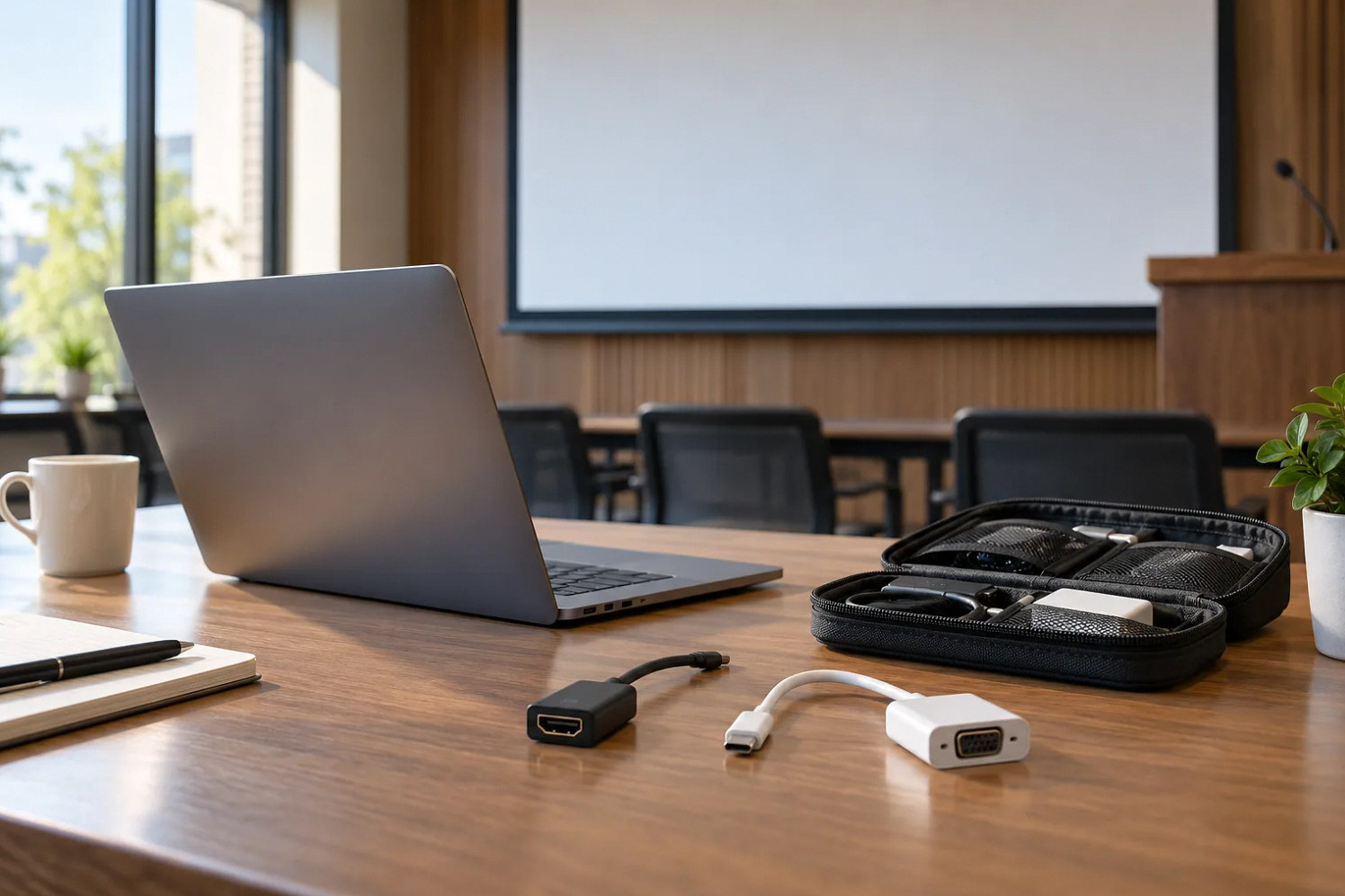
Start here
Book the connection workflow, not just the connector shape.
Ask what the laptop needs to do
Bring your own device, often shortened to BYOD, can mean two different services. The presenter may only need to show slides on a room display, or the laptop may need to host a call using the room camera, microphones and speakers. Those workflows have different connections and support requirements. Put both options on the event intake form in plain language.
Also ask whether the presenter will play video, share computer sound, use a document camera or hand control to another speaker. A successful static slide test does not establish that embedded media or a conferencing application will work. Avoid promising a universal one-cable experience until the actual room configuration has been checked.
Verify the guest’s device restrictions
Collect the laptop model, operating system and available ports without asking for passwords or private files. A managed corporate laptop may block applications, external devices or driver installation. Give the guest a concise list of the venue’s supported methods and ask their IT team to confirm any restrictions before travel. Provide an arrival testing window for unverified devices.
Manufacturer documentation is configuration-specific. Logitech describes several BYOD connection approaches, and its Extend compatibility guidance distinguishes supported devices and platform limitations. Use current compatibility documentation for the installed product rather than assuming that every laptop with the same port will behave identically.
Reference: Logitech: BYOD mode in CollabOS · Logitech Extend compatibility and verified devices
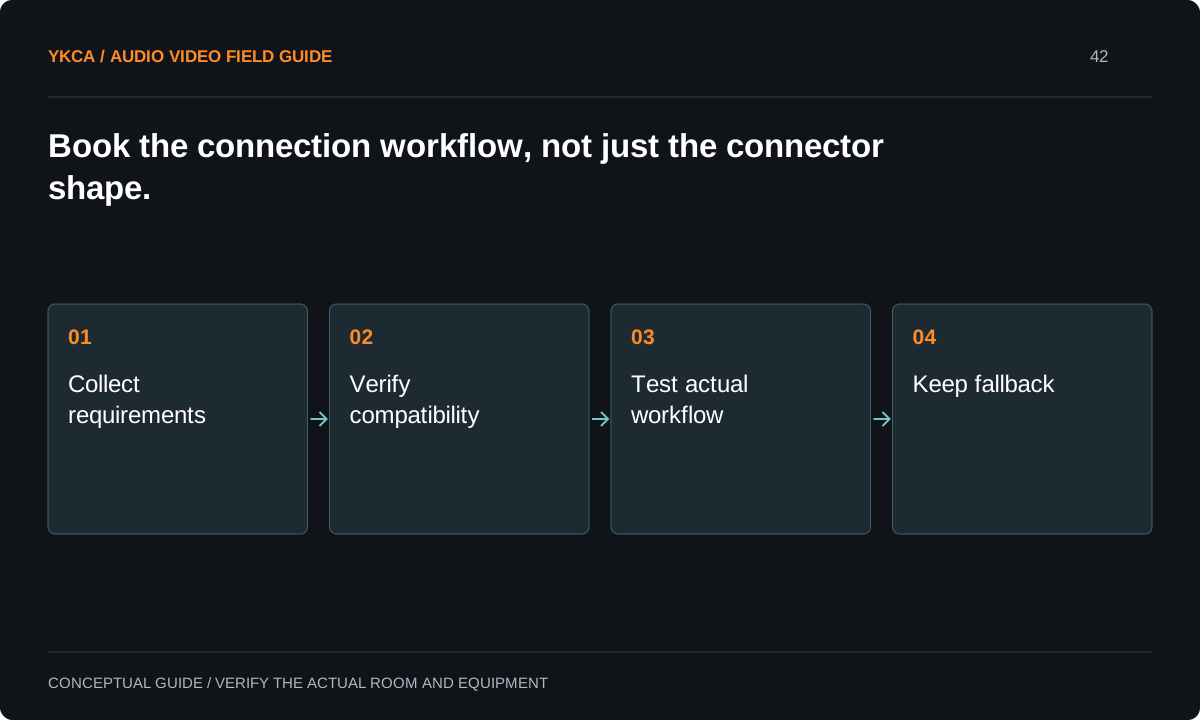
- Collect requirements
- Verify compatibility
- Test actual workflow
- Keep fallback
Prepare a small, controlled connection kit
Keep the adapters and cables that have actually passed the venue’s test, label them and store them with the room kit. Record which are intended for display-only use and which support the full conferencing workflow. A box of anonymous adapters encourages last-minute experiments and makes repeat failures difficult to diagnose.
Test the kit with representative supported laptops after equipment or software changes. Include camera permissions, audio device selection, media playback and a real remote test participant. Have staff recognize the expected room device names in the conferencing application. “Choose the correct microphone” is less useful than a room-specific instruction with the actual visible name.
Use a repeatable arrival test
For example, a guest arrives with a managed Windows laptop for a workshop. Staff first confirm a local slide, then a short video with sound. They next join a scheduled test call, select the room devices and ask the remote participant to confirm speech, camera framing and shared content. Only after that check is the session marked ready.
If the guest will switch between presentation-only and call modes, rehearse that transition too. Test disconnecting and reconnecting once, because the first presenter may finish before the next laptop arrives. Keep a simple log of the working connection path and any limits so the operator does not repeat discovery during the event.
Offer a fallback the presenter can accept
A venue computer with an authorized copy of the presentation can be a useful fallback, but it changes ownership of logins, media playback and file handling. Confirm that the presenter can use it and define how files are removed afterward. A guest who must demonstrate a restricted corporate application may need their own device, making advance testing more important.
For a failed hybrid path, the agreed fallback could be local presentation plus a separate supported call workflow. Do not describe that as equivalent if it removes a required camera, recording or content-sharing function. Tell the event organizer exactly which capability is unavailable and who decides whether the session can proceed.
For commercial audio video installation in a conference venue, test the physical presenter position as well as the laptop. A cable that works at the rack may not reach a lectern placed for the event, and a working camera may frame the wrong side of a rearranged room. Include the intended furniture position in the arrival check. Have staff show the guest where to place the laptop, how to avoid disconnecting the approved connection and where to request assistance. If the presenter changes position, repeat the relevant check. This keeps an otherwise compatible device from failing because the event layout differs from the installation demonstration.
Write the supported promise into the booking
Give booking staff a short capability statement with tested workflows, required advance information and the fallback. Keep it separate from internal cable diagrams. The client needs to understand what to bring and when to arrive; the technician needs model numbers, routing and recovery details. Both documents should refer to the same room configuration.
Acceptance is a guest-like rehearsal by someone who did not configure the room. They should follow the instructions, connect a supported device, complete the required presentation and call, then leave the room ready for the next booking. Update the instructions when device names or platform behavior changes rather than relying on staff to explain every exception from memory.
Compare the next steps
A decision table for this problem
| Situation | Operating decision | Evidence to check |
|---|---|---|
| Slides only | Use tested presentation input | Image and speaker notes behave as intended |
| Laptop hosts hybrid call | Connect required room peripherals | Remote participant confirms speech and camera |
| Managed laptop blocks devices | Resolve with guest IT before event | Supported policy-compliant path documented |
| Embedded video is essential | Test actual playback and sharing method | Local and remote audiences receive sound |
| Guest path fails | Use agreed venue fallback | Organizer accepts any missing capability |
Use this in the room
Your working checklist
Common questions
Does USB-C guarantee a one-cable meeting?
No. The port, cable, laptop and room equipment must support the required functions. Use the manufacturer’s compatibility guidance and a test of the actual configuration.
Can we guarantee support for any visiting laptop?
That is an overly broad promise. Publish supported workflows, provide advance testing and explain the fallback for unverified or restricted devices.
Should the presenter send files ahead?
When appropriate and authorized, a copy can support testing and fallback. Define who can access it, whether media dependencies are included and when the venue deletes it.
Read the original guidance
Sources and discussion context
Research used primary documents and, where full text was unavailable, indexed excerpts from official sources. A citation does not mean the complete document was accessible. Product behavior depends on the actual model, configuration and documentation. Confirm the requirements for your venue before changing the installation.
Reader problems behind this guide
These Reddit discussions helped identify the practical question. They are individual experiences, not technical authority or a measure of how common the problem is. Examples and diagrams illustrate planning decisions; they are not records of completed YKCA projects or installation drawings.
- BYOD style Conference hall setup
An IT operator needed laptop-hosted conferencing in an 800-square-foot flexible hall and was unsure how room peripherals connect.
Research access: search excerpt with post text; not independently opened.
Keep the whole system in view