
Video & LED walls · Practical guide
The Laptop Detects the Display, but the Screen Stays Black
A structured way to separate source-format, cable-path and content-protection problems in installed HDMI systems.
YKCA Journal · 5 min read · Updated October 3, 2026
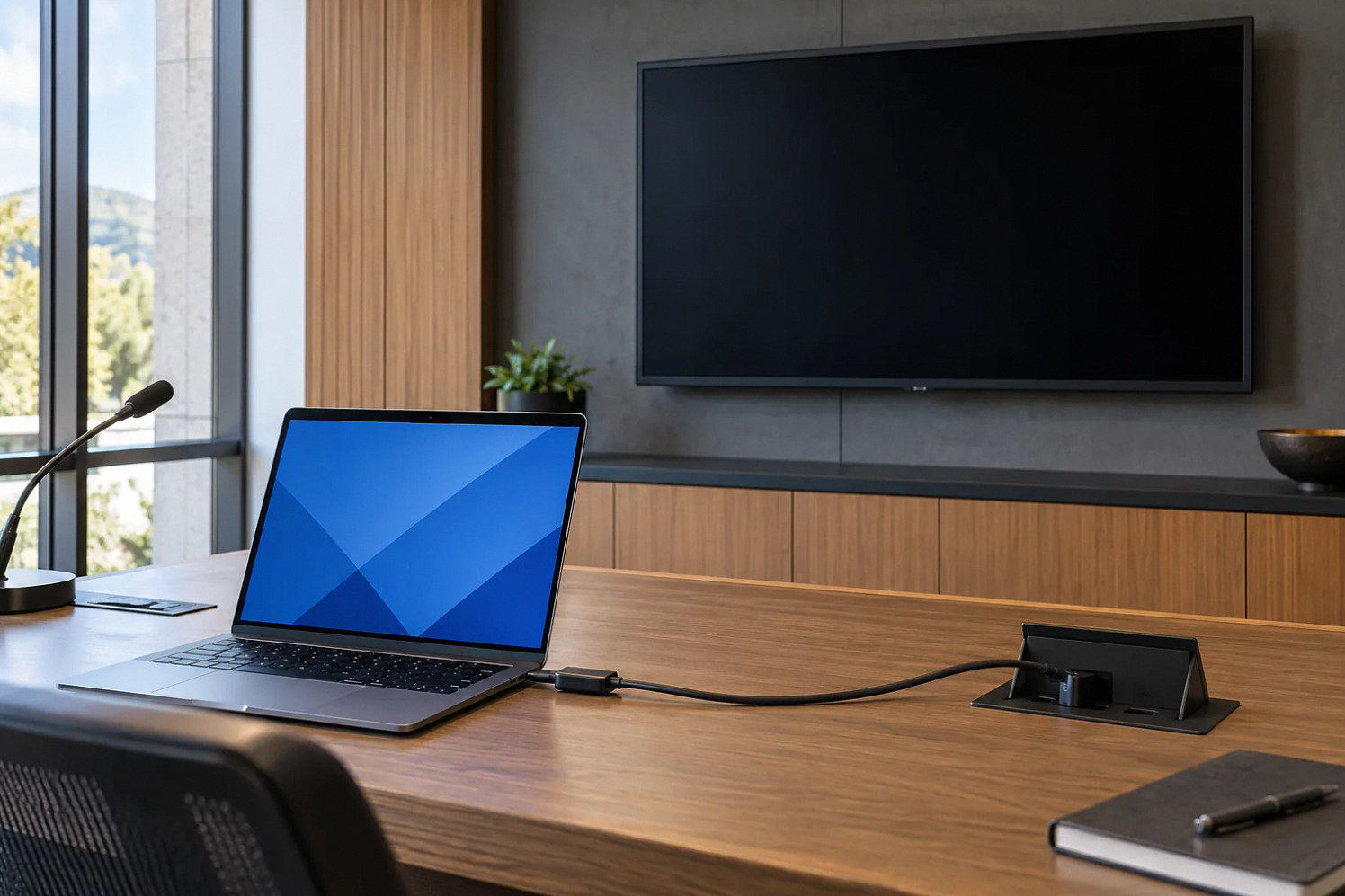
Start here
Detection is only one part of a working video connection.
Capture the exact failure state
A black screen can mean no signal, an unsupported format, a failed connection stage or a content-protection issue. Start by noting the display’s own message and whether the laptop reports an external screen. Record the source model, adapter, selected resolution, refresh rate and content being shown. Display detection alone does not identify which connection stage has failed. Avoid replacing several parts at once. The purpose of the first test is to describe a repeatable failure clearly enough that the next comparison can eliminate a possibility.
Separate identification from usable video
Extended Display Identification Data, or EDID, tells a source about supported display capabilities. High-bandwidth Digital Content Protection, or HDCP, is a separate authentication system used for protected content. Extron’s DTP2 and UCS documentation describes product-specific handling of these functions and shows that an encrypted source can produce a black output in some incompatible conditions. This is one possible explanation, not a diagnosis of every blank screen. A computer detecting a display does not prove the entire installed path can transport the selected video format. Have the technician read the relevant input and output status rather than treating a detection icon as a complete test.
Reference: Extron: DTP2 T 203 User Guide · Extron: UCS SW 313 User Guide
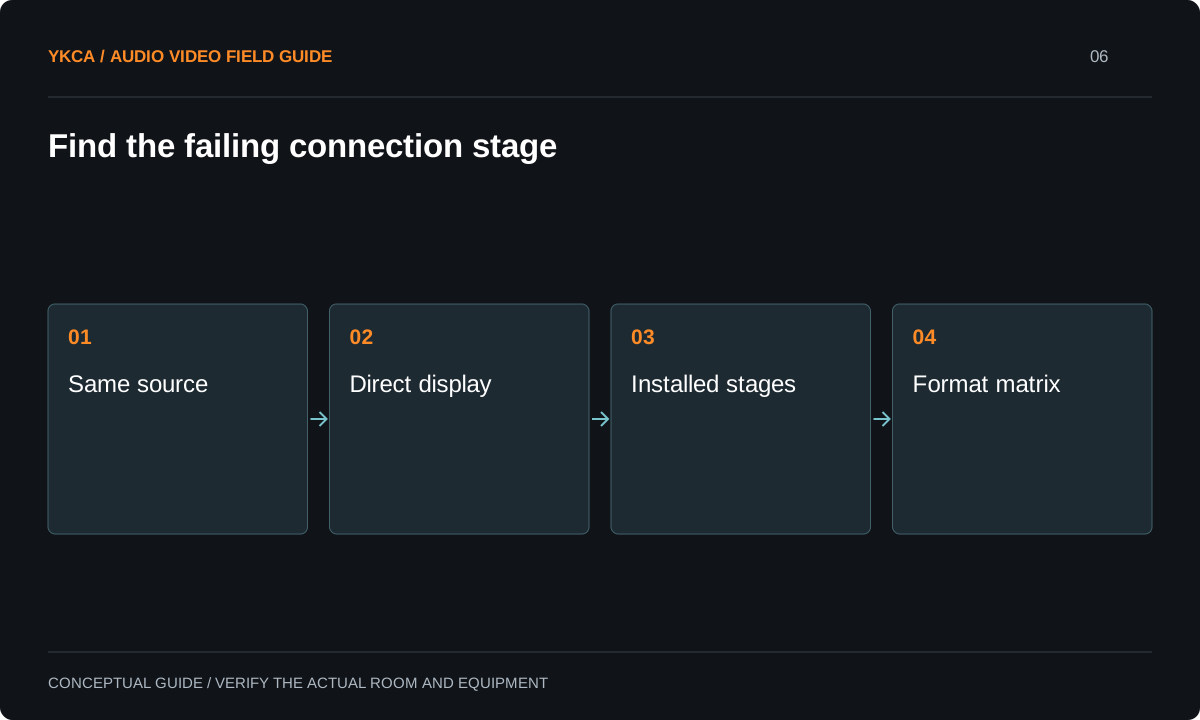
- Same source
- Direct display
- Installed stages
- Format matrix
Establish a known direct baseline
Use the same laptop, the intended display input and a known suitable short connection. Confirm that ordinary desktop content appears at an agreed supported format. Then reintroduce the installed stages: the user adapter, table connection, extension equipment, switcher and display-side cable, as applicable. Keep an accurate signal drawing so a successful bypass can identify what it bypassed. Do not use an undocumented adapter arrangement as a permanent repair. If the route requires a different transport method, select it from the documented format, distance and installation requirements. A universal cable-length cutoff from a forum is not an engineered specification.
Reference: Extron: DTP2 T 203 User Guide · Extron: UCS SW 313 User Guide
Compare a guest-laptop failure
Imagine that the room computer works, but a visitor’s laptop fails through a USB-C adapter. The visitor’s laptop works on the direct baseline, and the room path works when its output is changed to an agreed lower-bandwidth format. That comparison suggests investigating format compatibility across the path; it does not prove the adapter alone is defective. Record which format actually passed and whether audio followed correctly. If failure occurs only with protected playback, review supported content-protection behavior and authorized presentation methods. Do not promise to defeat encryption or assume that ordinary slides and a protected streaming application have identical requirements.
Test installed conditions and recovery
Bench success should be followed by a test of the completed route, including wall plates, couplers and cable management. Include the intended laptop and adapter families, connection after sleep, source switching and an ordinary unplug-and-reconnect sequence. Have the technician check whether a restart sequence is masking a negotiation problem. Evaluate sustained playback rather than one static desktop image. Where cables are active or directional, their documented orientation and power requirements need verification. The acceptance matrix should state the formats and paths actually tested. “HDMI works” is too broad if only one source at one resolution was demonstrated.
Leave a useful operating and support record
Give staff the supported connection workflow and a small, labeled set of approved adapters. Keep the more detailed path diagram, equipment settings and acceptance matrix with the technical handoff. If an unsupported laptop format is the remaining limitation, state it openly instead of instructing everyone to reconnect until the screen appears. Record the successful rollback configuration before updating firmware or replacing equipment. Future support should begin with the exact source, content and failure state, not with guessing which cable is newest. A reliable room gives the user a predictable connection process and gives the technician evidence when an exception occurs.
Make the source matrix part of procurement rather than waiting for the first visiting presenter. List the required connection types, intended image formats, audio behavior and representative adapters. Identify whether the scope includes only ordinary presentation material or also protected playback through authorized services. If one format is outside the accepted path, give users a clear supported alternative before the meeting begins. Include cable replacement access in the design review: a path that works today but cannot be serviced without dismantling finished furniture may create an avoidable maintenance burden. The final choice should satisfy both the image requirement and the practical ability to diagnose or replace its connection stages later. Include the accepted signal formats and cable service access in the commercial video display installation scope, alongside the equipment list.
Compare the next steps
A decision table for this problem
| Test result | What it establishes | What it does not establish |
|---|---|---|
| Direct short path works | Source and display can cooperate | Installed path is healthy |
| Display detected, no picture | Some identification occurred | Usable video transport |
| Lower format works | A constrained mode passes | Every higher format will pass |
| Slides work, protected playback fails | Content changes the outcome | A cable is necessarily defective |
| One laptop works repeatedly | That source/path was tested | All guest adapters are supported |
Use this in the room
Your working checklist
Common questions
Does an HDMI version label prove compatibility?
No. Check the capabilities of the complete source, adapter, cable, extension and display path for the actual format and features required.
Should we replace the installed cable immediately?
First isolate the failing segment where practical. If inspection or testing identifies cable damage or an unsuitable path, replacement can then be scoped with evidence.
Can we disable HDCP as a general fix?
Protected content may require HDCP. Follow the product documentation and authorized content workflow; an unprotected presentation test does not establish protected-playback support.
Read the original guidance
Sources and discussion context
Research used primary documents and, where full text was unavailable, indexed excerpts from official sources. A citation does not mean the complete document was accessible. Product behavior depends on the actual model, configuration and documentation. Confirm the requirements for your venue before changing the installation.
Reader problems behind this guide
These Reddit discussions helped identify the practical question. They are individual experiences, not technical authority or a measure of how common the problem is. Examples and diagrams illustrate planning decisions; they are not records of completed YKCA projects or installation drawings.
- Weird HDMI problem
A laptop detected a display, but installed table-to-display HDMI paths failed despite prior cable tests.
Research access: opened post.
Keep the whole system in view