
Conference centers · Practical guide
What “Supports Teams, Zoom and Meet” Should Mean in a Venue Booking
Translate platform compatibility into a verified list of guest-join, content, camera and meeting-control capabilities.
YKCA Journal · 5 min read · Updated October 3, 2026
Start here
Sell the tested meeting workflow, not a list of platform logos.
Ask who hosts the meeting
A client saying “we use Zoom” has not yet defined what the venue must supply. Their organization may host the call, send an external invitation, require a webinar format or restrict guest devices. Ask who owns the meeting, who admits participants and which account is responsible for any recording. These questions determine the workflow before a room platform is selected.
Also separate local presentation from remote content sharing. A slide visible on the room display may not be shared into the call, depending on the connection method. Write the required outcome in audience terms: what the people in the room see and hear, and what remote participants receive.
Distinguish native operation, guest join and BYOD
A native room mode runs the room’s configured meeting platform. Third-party guest join connects that room system to another provider through a supported integration. BYOD lets a guest laptop host the meeting while using compatible room devices. These are alternatives with different feature boundaries, rather than interchangeable names for the same experience.
Microsoft’s third-party-join documentation explicitly lists prerequisites and differences between join methods. Logitech’s BYOD documentation describes laptop connection approaches for supported products. Read the documentation for the installed hardware, operating system and deployed software version. Where a marketing page and a support compatibility article differ, resolve the uncertainty before advertising the feature.
Reference: Microsoft: Third-party meetings on Teams Rooms · Logitech: BYOD mode in CollabOS
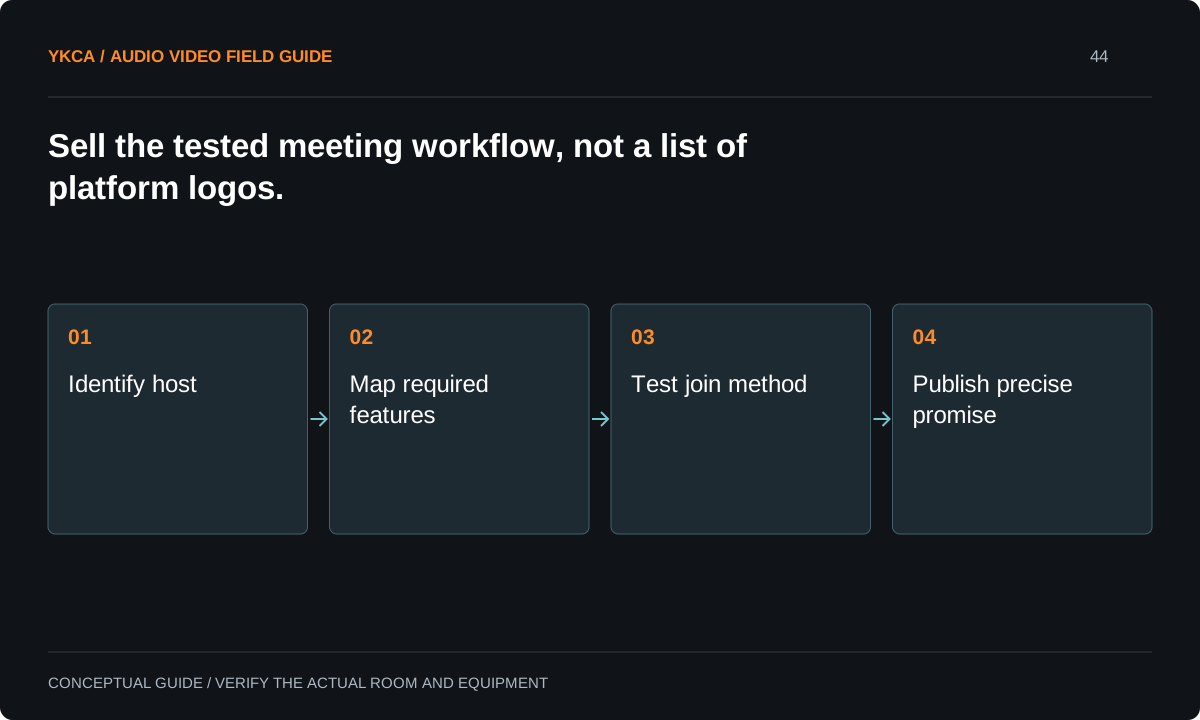
- Identify host
- Map required features
- Test join method
- Publish precise promise
Build a capability matrix clients can understand
The matrix should include joining from an invitation, sharing laptop content, sharing media sound, controlling cameras, displaying remote people and content, and handling the required recording. Add webinar or event features only if clients need them. Mark each workflow as tested, unavailable or requiring a defined alternate path. Avoid a single green checkmark beside a platform logo.
Keep the client version concise and retain technical detail internally. A dated note such as “guest join tested with this room configuration” is more honest and useful than “works with everything.” Assign an owner to refresh the matrix after platform or firmware changes that affect the room.
Rehearse the actual external invitation
For example, a Teams-based venue receives a client’s external meeting invitation. Staff verify that it reaches the room calendar, joins through the intended method and supports the client’s required content-sharing path. The presenter then demonstrates a short video with sound, and a remote participant checks the result. The organizer confirms who controls admission and recording.
If a required function is unavailable in guest join, the team tests the laptop-hosted fallback before the booking. This rehearsal also reveals account policies or network restrictions that are invisible in a generic vendor demonstration. Use nonconfidential content and a test meeting, not an active client session.
Make ownership visible during the event
A room controller may show a mute button while the guest laptop or platform has another mute state. The event team needs to know which device is in charge and which indication confirms the audience-facing result. Document the approved controls and show the presenter the limited actions they will use. Avoid having several people change meeting settings independently.
For a platform switch between sessions, reserve time to end the first call and restore the expected room mode. Confirm that the previous client’s shared content and account session are gone. A clean handover protects both reliability and ordinary confidentiality without making front-desk staff responsible for system administration.
Commercial audio and video systems should be evaluated against the client's meeting permissions as well as the platform name. A presenter may be able to join but lack permission to share content or start recording. Have the organizer assign the required meeting roles during the test invitation rather than asking venue staff to borrow credentials. Include a second presenter if the agenda includes a handoff. Verify what happens when the host leaves and when the meeting ends. These are account and workflow questions that additional cameras will not resolve. Keeping them on the booking checklist prevents a functioning room from being blamed for an unassigned meeting privilege.
Keep the promise narrower than the hardware brochure
Handoff should include the tested capability matrix, guest requirements, invitation instructions and fallback. Booking staff need to know when a request requires technical review, especially recording, multiple remote platforms, interpretation or complex audience interaction. Those features should not be inferred from a successful basic call.
Acceptance means the venue can demonstrate each advertised workflow with its own staff and representative external guests. Record any feature limits and the date of verification. When a vendor changes support, update the booking statement as well as the equipment configuration. A precise promise is easier to deliver than a broad claim that staff must qualify at the door.
Compare the next steps
A decision table for this problem
| Situation | Operating decision | Evidence to check |
|---|---|---|
| Native platform meeting | Use configured room workflow | Invitation, content and controls tested |
| External provider invitation | Use supported guest-join method | Required features verified individually |
| Guest needs unsupported function | Test laptop-hosted alternative | Room devices work with guest laptop |
| Client requires recording | Assign meeting and file owner | Authorized recording workflow demonstrated |
| Platform changes between sessions | Perform a defined room handover | Prior account and content no longer active |
Use this in the room
Your working checklist
Common questions
Does joining a meeting prove full compatibility?
No. Content sharing, display layouts, controls and event features can differ. Verify the functions the client actually needs in the installed configuration.
Is a guest laptop always the best fallback?
It is useful when supported and pretested, but managed-device restrictions or peripheral incompatibility can block it. Keep an agreed alternate rather than assuming it will always work.
Who should own the recording?
The booking must identify the authorized meeting host and file owner, along with access and retention expectations. The venue’s ability to connect a call does not settle those responsibilities.
Read the original guidance
Sources and discussion context
Research used primary documents and, where full text was unavailable, indexed excerpts from official sources. A citation does not mean the complete document was accessible. Product behavior depends on the actual model, configuration and documentation. Confirm the requirements for your venue before changing the installation.
Reader problems behind this guide
These Reddit discussions helped identify the practical question. They are individual experiences, not technical authority or a measure of how common the problem is. Examples and diagrams illustrate planning decisions; they are not records of completed YKCA projects or installation drawings.
- Affordable conference room solutions
The desired experience was a guest connecting a laptop and starting a Zoom meeting; commenters contrasted laptop and dedicated-room approaches.
Research access: search excerpt with post text; not independently opened.
Keep the whole system in view