
Bars, restaurants & clubs · Practical guide
Digital Menu Screens: Who Verifies the Update Actually Appeared?
Build a restaurant signage workflow with content ownership, scheduling, player confirmation and a usable stale-menu fallback.
YKCA Journal · 5 min read · Updated October 3, 2026
Start here
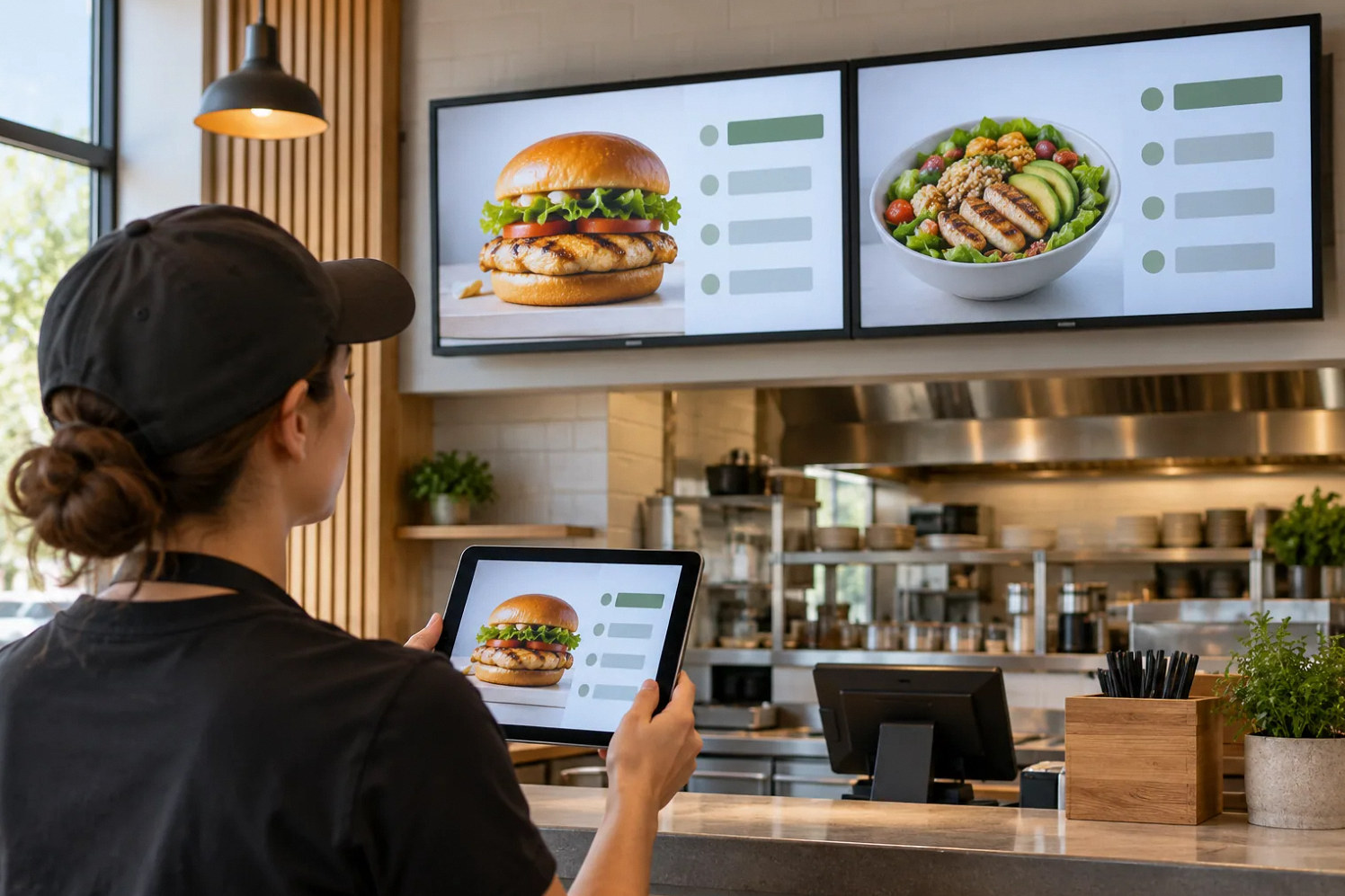
A saved menu is not a verified screen update.
Assign ownership before choosing screens
A restaurant signage project needs more than a display and a slideshow. Someone must maintain menu content, approve changes, publish them and verify the result during service. Name those roles first. They may belong to the same person in a small venue, but the responsibilities should remain explicit. Keep technical account administration separate where possible.
Screen size alone cannot resolve an unreliable publishing workflow. Ask how often your content changes, how many destinations differ and what happens when one destination misses an update. These answers shape the publishing method.
Separate saving, publishing and displaying
BrightSign’s Quick Publish documentation distinguishes saving an editable presentation from publishing the files a player needs. The distinction is useful for any signage discussion: editing content does not establish delivery, and delivery does not establish correct display. Ask the vendor to show each stage and its status indication in the proposed system.
For a multi-screen venue, define whether screens share a presentation, belong to groups or need independent content. Label physical screens and their player records consistently. A perfectly published breakfast menu on the wrong dining-area screen is still an operating failure. Include destination selection in staff training and the approval checklist.
Reference: BrightSign: Quick Publish
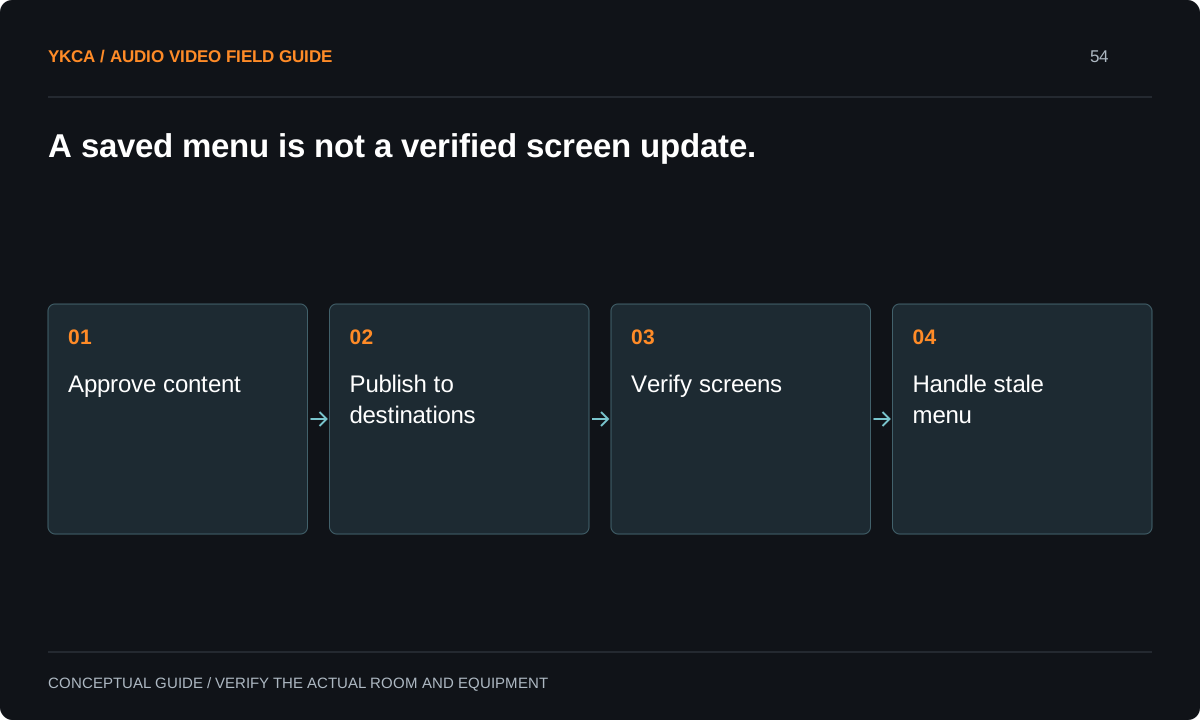
- Approve content
- Publish to destinations
- Verify screens
- Handle stale menu
Treat menu accuracy as a business responsibility
AV tools can distribute text and images, but they do not determine whether a price, ingredient list or allergen statement is correct. Keep those approvals with the restaurant’s responsible team. Do not rely on automatic text generation or translation without the required human review for the intended content. Identify which changes are urgent and who can approve them during service.
Keep the approved version and its effective time in an accessible record. Staff should know how to remove or replace stale information if a player cannot be updated. The fallback may be a verified printed menu or another approved display method. Choose that process before an inaccurate screen becomes a live-service problem.
Rehearse a real daypart transition
For example, the manager approves a lunch menu that should replace breakfast at a specified time. The publisher sends it to the intended screen group. Before lunch begins, a floor staff member checks the actual screens, including prices and the destination-specific items. One disconnected player is identified and handled through the agreed fallback.
The example separates approval, distribution and verification without requiring a large team. It also tests clocks and scheduling. BrightSign’s Web Folder guidance notes the role of player time and locally downloaded content in that deployment mode. Check the equivalent behavior for your selected platform instead of assuming a network outage always produces a blank screen.
Reference: BrightSign: Web Folder troubleshooting
Define what stale and offline mean
A disconnected screen may continue showing an older menu, while a connected player may fail to download new content. Those conditions require different responses. Ask the technical owner which status is available to staff and whether it proves the current presentation is on screen. A green network icon should not be treated as content approval.
Agree on a maximum acceptable verification interval for the restaurant’s workflow and who responds to a missed update. Keep that an owner decision based on the content’s importance, rather than inventing a universal number. Document how storage, clock, account or scheduling faults are escalated and which user actions are safe during service.
Retain a simple proof of each important menu release: approved version, destination group, effective time and the person who checked the screens. A screenshot from the content editor proves the intended design, while a player capture or physical check provides different evidence of delivery. State which confirmation the chosen platform actually supports. If a screen is inaccessible during service, define how staff verify it without unsafe access or interrupting guests. Keep the record proportionate to the restaurant's needs. The aim is to answer “which version is displayed here?” promptly, especially when a price or availability change must reach only part of the venue.
Accept the publishing workflow with restaurant staff
Have the ordinary publisher create a nonconfidential test change, obtain approval, publish it and confirm every intended screen. Then rehearse a rejected or failed update and the fallback. Verify a scheduled transition and a return from interruption through supported procedures. Do not declare the signage ready after a vendor’s sample video plays once.
The handoff should include screen and player names, account ownership, publishing instructions, content approval rules and recovery contacts. Keep editable source files and required media under business control. Commercial audio and video systems are most useful when the operating team can maintain accurate information after the installer leaves, including when an update does not go as planned.
Compare the next steps
A decision table for this problem
| Situation | Operating decision | Evidence to check |
|---|---|---|
| Menu revision drafted | Obtain responsible content approval | Approved version and effective time recorded |
| Presentation saved | Publish through configured method | Player delivery status checked |
| Daypart transition | Verify clock and schedule behavior | Actual screens show intended menu |
| Player remains on old content | Use stale-information fallback | Floor staff know the displayed version |
| Staff member leaves | Transfer authorized business access | Source files and administration remain available |
Use this in the room
Your working checklist
Common questions
Does the cloud dashboard prove the correct menu is visible?
Only to the extent its status actually verifies that result. Confirm the platform’s behavior and check the physical screens, especially during acceptance and important menu changes.
Will screens go blank if the internet fails?
That depends on the system and content type. Some deployments play downloaded local content. Test your configuration and plan for stale information as well as blank screens.
Can one employee handle publishing?
Yes, if approval and verification responsibilities remain clear and a trained backup has authorized access. Avoid making one personal device or account the only publishing path.
Read the original guidance
Sources and discussion context
Research used primary documents and, where full text was unavailable, indexed excerpts from official sources. A citation does not mean the complete document was accessible. Product behavior depends on the actual model, configuration and documentation. Confirm the requirements for your venue before changing the installation.
Reader problems behind this guide
These Reddit discussions helped identify the practical question. They are individual experiences, not technical authority or a measure of how common the problem is. Examples and diagrams illustrate planning decisions; they are not records of completed YKCA projects or installation drawings.
- How to implement digital signage for a buffet?
A catering operator needed to update many small dish labels twice daily, including ingredients and allergens, without editing devices individually.
Research access: search excerpt with post text; not independently opened.
Keep the whole system in view